
Summary
This article describes how to deploy Traffic Dictator on an Arista switch using EOS Container manager and configure a BGP session between TD and EOS.
Why run TD on a switch
The regular way to deploy Traffic Dictator is to install it on a dedicated server, virtual infrastructure or in the cloud. Then you need to configure BGP sessions between TD and some routers (e.g. route reflectors) to exchange link-state information and SR-TE policies.
For example, on the topology below, R1 and R2 are connected to SW1; the switch is connected to the server on which Traffic Dictator runs in a VM.
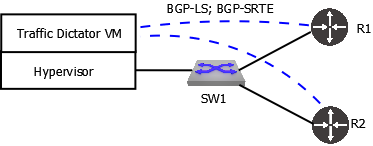
While this works fine and is recommended for most deployments, what if we have a small scale network and there is no existing VM or container infrastructure that can be used to run TD.
Rather than installing an extra server, using more ports, buying transceivers and cables, it is possible to run a Docker container with TD on a switch itself!

No extra resources, ports or cables are used. The BGP session runs virtually inside the switch so it cannot go down unless either TD or host OS BGP process fail.
Requirements and platform support
In order to run Traffic Dictator on a switch, we need several things:
- Resources: TD requires at least 2 CPU cores and 4 GB of memory.
- The switch must support Docker containers. Most modern network OS are Linux based and therefore in theory can run containers. In practice it depends on the vendor and platform; whether or not the vendor has included docker runtime in their OS.
- The possibility to set up a BGP session between network OS and TD running in a docker container. This can be tricky as you will see later.
This article focuses on Arista EOS and their container manager. It’s preferred to just using docker CLI, because it’s displayed in switch running config and will survive software upgrades.
A 7280 series switch with EOS 4.32.1F is used.
Installing Traffic Dictator on EOS
First make sure the switch has docker extension installed:
switch#show ext
Name                       	Version/Release  	Status   	Extension
------------------------------ -------------------- ------------ ---------
EOS64-4.32.1F-docker.swix  	24.0.4/1.el9     	A, I, B  	13
If it’s not installed, you can download it from the Arista website.
Then download Traffic Dictator container from the Vegvisir website, copy and and install it on the switch:
[admin@switch ~]$ mv /tmp/traffic-dictator-1.1.tar.gz /mnt/flash
switch#conf
switch(config)#container-manager
switch(config-container-mgr)#images
switch(config-container-mgr-images)#load flash:traffic-dictator-1.1.tar.gz
Verify the image has been imported:
switch#show container-manager images
   Name               	Tag          	Id             	Created      	Size
---------------------- ---------------- ------------------ ------------------- -------
   traffic_dictator   	1.1          	d2f2e19394f4   	12 days ago  	1.45 GB
Understanding Docker networking on EOS
Once the image is imported, we can start the container. But first let’s understand how we will setup a BGP session between TD and EOS. The container will receive an IP address from the default docker IP range 172.17.0.0/16:
switch#bash ip ad ls | grep 172
	inet 172.17.0.1/16 brd 172.17.255.255 scope global docker0
So the logical step would be configuring a BGP session between 172.17.0.1 and 172.17.0.2, right?
The problem is that the EOS BGP process does IP lookup in the EOS routing table but not in the Linux kernel routing table. The docker subnet 172.17.0.0/16 and interface docker0 are present in the latter but not in the former. Any route added to the EOS routing table is also copied to the Linux routing table but not the other way around. So if we configure a BGP session between 172.17.0.1 and 172.17.0.2, EOS won’t be able to do route lookup:
switch#sh ip bgp su
BGP summary information for VRF default
Router identifier 2.2.2.2, local AS number 65002
Neighbor Status Codes: m - Under maintenance
  Neighbor   V AS       	MsgRcvd   MsgSent  InQ OutQ  Up/Down State   PfxRcd PfxAcc
  172.17.0.2 4 65001         	48    	48	0	0 00:12:21 Idle(NoIf)
To make things more confusing, we can ping between these IP:
switch#ping 172.17.0.2
PING 172.17.0.2 (172.17.0.2) 72(100) bytes of data.
80 bytes from 172.17.0.2: icmp_seq=1 ttl=64 time=0.050 ms
80 bytes from 172.17.0.2: icmp_seq=2 ttl=64 time=0.007 ms
80 bytes from 172.17.0.2: icmp_seq=3 ttl=64 time=0.006 ms
80 bytes from 172.17.0.2: icmp_seq=4 ttl=64 time=0.005 ms
80 bytes from 172.17.0.2: icmp_seq=5 ttl=64 time=0.006 ms
This is because ping on EOS is just a wrapper for Linux ping which does route lookup in the Linux kernel routing table.
Suggested workaround
There are multiple ways to solve this problem; the best of course would be Arista adding docker0 to the EOS routing table to enable communication between EOS routing processes and Docker containers running on the switch.
What I will show in this article is:
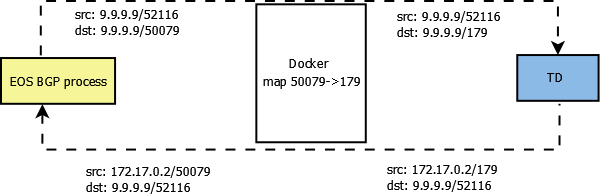
- Map port 179 on container to another port (which must be allowed by control plane policy on EOS, so port 50079 is used in this example)
- On EOS, configure Loopback100 with IP 9.9.9.9
- On Traffic Dictator, configure a BGP session to 9.9.9.9
- On EOS, configure a BGP session to 9.9.9.9, port 50079
- On EOS, configure a second BGP session to 172.17.0.2, port 50079, and shutdown it
The last point is crucial, because TD will source BGP packets from the IP assigned to the Docker container (172.17.0.2). If EOS doesn’t have 172.17.0.2 configured as a BGP neighbor (even in shutdown state), the BGP process will reject packets from that IP.
The communication will look like this (52116 is a randomly chosen client port)
Starting TD container
Now with TD image imported and suggested design understood, configure container manager on EOS to run TD:
container-manager
   container TD1
  	no shutdown
  	profile TD-profile
   !
   container-profile TD-profile
  	image traffic_dictator:1.1
  	memory hard-limit 8g
  	memory soft-limit 4g
  	options -p 50079:179
  	security mode privileged
Make sure to allocate at least 4GB of memory, otherwise the container will fail to start. Check that container is running:
switch#show container-manager containers
Container Name: TD1
State: running
Managed: True
Container Id: 5b1efb7f0d9ea147143510c93e016b1920a07de82a542cd85ba83929549d9982
Profile Name: TD-profile
Image Name: traffic_dictator:1.1
Image Id: sha256:d2f2e19394f42baa99d08f753dce0f4801fa625676e9f879bbf6d11fa4a885b2
Command: /sbin/init
Created: 11 seconds ago
Started: 11 seconds ago
Ports: 0.0.0.0:50079->179/tcp, :::50079->179/tcp, 22/tcp, 443/tcp, 80/tcp
Configuring and verifying BGP between EOS and TD
Wait a few minutes for TD to boot and start processes, then login to the container and configure BGP:
switch#bash sudo docker exec -ti $(sudo docker ps -aq) tdcli
### Welcome to the Traffic Dictator CLI! ###
Traffic Dictator BGP config:
router bgp 65002
   router-id 1.1.1.1
   !
   neighbor 9.9.9.9
  	remote-as 65001
  	ebgp-multihop 10
  	address-family ipv4-srte
  	address-family link-state
Arista BGP config:
router bgp 65001
   router-id 1.2.3.4
   neighbor 9.9.9.9 remote-as 65002
   neighbor 9.9.9.9 transport remote-port 50079
   neighbor 9.9.9.9 ebgp-multihop 10
   neighbor 172.17.0.2 remote-as 65002
   neighbor 172.17.0.2 shutdown
   neighbor 172.17.0.2 transport remote-port 50079
   neighbor 172.17.0.2 ebgp-multihop 10
   !
   address-family ipv4 sr-te
  	neighbor 9.9.9.9 activate
  	neighbor 172.17.0.2 activate
   !
   address-family link-state
  	neighbor 9.9.9.9 activate
  	neighbor 172.17.0.2 activate
With this configuration, the BGP session should come up. Verify on EOS:
switch#show bgp sr-te summary
BGP summary information for VRF default
Router identifier 1.2.3.4, local AS number 65001
Neighbor Status Codes: m - Under maintenance
  Neighbor   V AS       	MsgRcvd   MsgSent  InQ OutQ  Up/Down State   PfxRcd PfxAcc
  9.9.9.9	4 65002          	9     	9	0	0 00:00:35 Estab   0  	0
  172.17.0.2 4 65002          	0     	0	0	0 00:02:08 Idle(Admin)
Verify on TD:
5b1efb7f0d9e#sh bgp su
BGP summary information
Router identifier 1.1.1.1, local AS number 65002
  Neighbor         	V	AS      	MsgRcvd  MsgSent  	InQ 	OutQ  	Up/Down	State      	Received NLRI	Active AF
  9.9.9.9          	4	65001        	29   	35    	0    	0  	0:01:36	Established            	0	IPv4-SRTE, LS
Note how from EOS perspective, the BGP session is between 9.9.9.9 and 9.9.9.9:
switch#sh bgp neighbors
—
Local TCP address is 9.9.9.9, local port is 52116
Remote TCP address is 9.9.9.9, remote port is 50079
From TD perspective, local IP is 172.17.0.2:
d2f2e19394f4#sh bgp nei
BGP neighbor is 9.9.9.9, port 52116 remote AS 65001, external link
  BGP version 4, remote router ID 1.2.3.4
  Last read 0:00:44, last write 0:00:37
  Hold time is 180, keepalive interval is 60 seconds
  Configured hold time is 180, keepalive interval is 60 seconds
  Hold timer is active, time left 0:02:16
  Keepalive timer is active, time left 0:00:23
  Connect timer is inactive
  Idle hold timer is inactive
  BGP state is Established, up for 0:01:38
  Number of transitions to established: 1
  Last state was OpenConfirm

  Active address families:
	IPv4-SRTE, LS


  Other negotiated capabilities:
	route-refresh, asn32

                     	Sent   	Rcvd
	Opens:             	26      	1
	Notifications:      	6     	25
	Updates:            	0      	0
	Keepalives:         	3      	3
	Route Refresh:      	0      	0
	Total messages:    	35     	29
  NLRI statistics:

                                	Sent   	Rcvd
	Link-State:                    	0      	0
	IPv4 Labeled-Unicast:          	0      	0
	IPv6 Labeled-Unicast:          	0      	0
	IPv4 SRTE:                     	0      	0
	IPv6 SRTE:                     	0      	0
Local IP is 172.17.0.2, local AS is 65002, local router ID 1.1.1.1
TTL is 10
As I explained above, if we remove the second (shutdown) BGP session on EOS, the first session will also fail because EOS will reject packets from 172.17.0.2.
Other ways to establish a BGP session between TD and EOS
Aside from the method described above, there are other options:
- Hopefully Arista will add a knob to expose docker0 and other system interfaces to EOS routing processes, so we could set up a BGP session without these workarounds/
- It is possible to start the container with option –network=host to expose all EOS interfaces to the container, and also edit bgp_defaults to change BGP port TD listens on from 179 to something else (otherwise it will conflict with the EOS BGP process).
- It is possible to expose system interfaces by editing some system scripts on EOS – there are few who can do that, and I will not utter this method here.
Conclusion
TD running in a Docker container on a switch is an easy and lightweight method to deploy an SR-TE controller without using any extra hardware resources.
Aside from Arista, some other vendors support running docker containers on their routers/switches, e.g. Cisco IOS-XR or IOS-XE. In theory any Linux-based network OS should be able to run containers, although there are nuances related to vendor implementations.